| |
| How to Use Adobe(R) Reader(R) |
| |
| This manual is provided in PDF format. This section explains only frequently used features taking Ver. 7.0 as a sample. |
| |
|
| |
| Viewing the Table of Contents |
 |
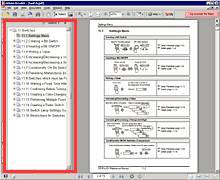
Each chapter has red-bordered markers attached to it. Click the plus signs and a more detailed table of contents appears. Click the marker's topic and the corresponding page appears. and a more detailed table of contents appears. Click the marker's topic and the corresponding page appears. |
|
|
| |
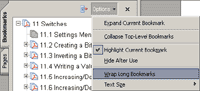
To insert line feeds according to the bookmark width, click Option and then
put a check mark next to the"Wrap Long Bookmarks" box. next to the"Wrap Long Bookmarks" box. |
|
|
| Turning the Pages |
|
| Use the navigation controls on the bottom of the screen to move around the document or
change the display method. |
|
 |
|
  |
Returns to the last displayed page. |
 |
Input the page number to open and press the [Enter] key and the inputted page will be displayed. |
  |
Displays the first page or the last page. |
  |
Displays one page before or after the current page. |
|
|
| Printing |
|
Click the button and designate the print conditions in the Print dialog box to print. button and designate the print conditions in the Print dialog box to print. |
|
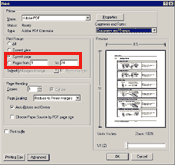 |
Print Range
Specify the print range you want. |
| • |
To print only the currently displayed page, turn ON [Current page]. |
| • |
To specify the print range, turn ON and input the start page and the end page. and input the start page and the end page. |
|
|
|
| Searching |
|
Click the button and designate the search conditions on the Search panel to search. button and designate the search conditions on the Search panel to search. |
|
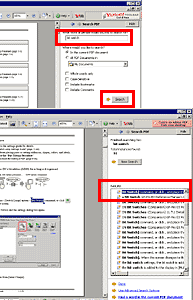 |
| Input the phrase you want to search. |
|
Specify the search range.
To search other PDF documents as well, turn ON

the folders containing PDF documents. |
|
Click the button and the search will start. button and the search will start. |
|
When the search ends, the search result will be displayed.
Click a blue phrase to display a page
containing the phrase. |
|
|
|
| Learning Other Features |
|
| For more details on operating Adobe(R) Reader(R)7.0 refer to Adobe(R) Reader(R)7.0's Help. |
|
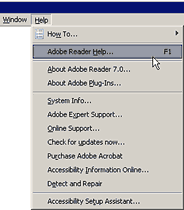 |
Click [Help] from the menu bar, and select
Adobe Reader Help from the pull-down menu which appears.
The help screen appears. |
|
|
| |
| |