Parts you can draw on a Keypad screen include [Keypad] and [Key]. From the [Draw] menu you can draw Dot, Line/Polyline, Circle/Oval, Rectangle, Arc/Pie, Polygon, Scale, Table, and Text.
On the keypad screen, you can use the [Call Screen] command to load base screens, images, and marks.
When using the [Call Screen] command, do not draw parts on the screen that you are loading onto the keypad screen. These parts may influence keypad screen operations. Or the parts themselves may not operate properly.
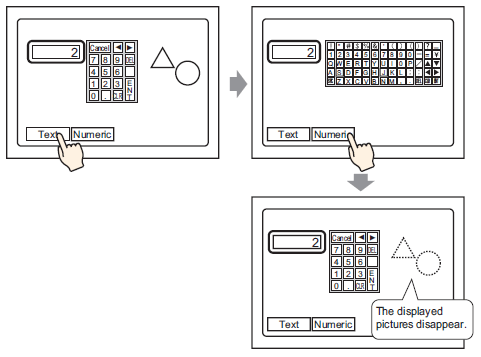
If pictures and text are hidden by switching to a larger keypad display, they will remain hidden and cannot display again by switching to a smaller keypad. Do not place pictures, text and other parts in the area where a keypad appears on the Base Screen.
If the convert resolution is performed when the model of the display unit is changed, the sizes of keypads placed directly on the base screen or window screen are automatically adjusted, but the size of the parts placed on the keypad registration screen are not adjusted. After changing the model, adjust sizes individually.
When using the GP3000 Series, LT3000 Series, or ST3000 Series, set both the X-coordinate of the position of the Keypad screen Clear Area and the width of the Keypad screen Clear Area in 4-pixel increments. If not set properly to 4-pixel increments, the values will be automatically adjusted to 4-pixel increments.