
-
Please refer to the Settings Guide for details.
 21.7 Settings Guide
Set up animation that changes the text background color from green to red when M100 turns ON.
Please refer to the Settings Guide for details.
21.7 Settings Guide
Select the text for which you want to change its background color, and from the [Edit (E)] menu click [Animation (N)], or right-click the text and select [Animation (N)].
The animation settings screen can also be displayed as follows.
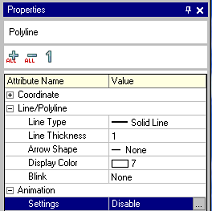
Select an object on the screen, from the [Properties] window, [Animation], [Settings], click on the ellipsis [...].
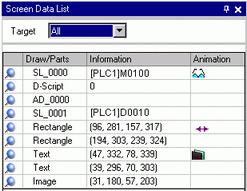
On the [Screen Data List] dialog box, double click on the [Animation] column of the object you want to edit.
The [Animation Settings] dialog box appears. On the left pane, expand [Color] and select [Background].
Select the [Background Color Animation] check box.
Select [Bit Address] and then define the address. (For example, M100)
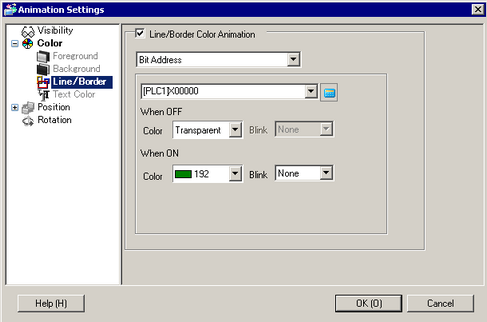
Specify the colors for [When OFF] and [When ON], and click [OK].
If you specify [Blink] here, the [Blink] settings configured on parts are disabled and the blink configured with the Color Animation is enabled.