The following describes the workflow for opening an existing project, editing, and saving.
Open
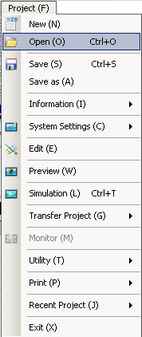
From the [Project (F)] menu, select [Open (O)] or click the Open icon
.

![]()
You can open the previously created Project File (*.prx) by double-clicking it directly.
In order to open the project file that is saved when starting GP-Pro EX, select [Open Existing Project] or [Open Recent Project] in the [Welcome to GP-Pro EX] dialog box.
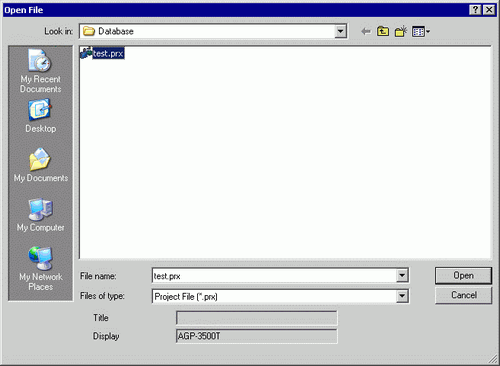
In the [Open File] dialog box, specify the project file (*.prx), then click [Open].
![]()
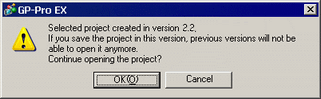
If you attempt to open a project file from a previous version, the following warning message appears.
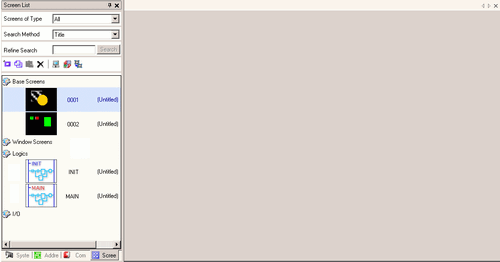
The project's main window opens.
![]()
You can open two different project files at the same time.
Editing/Saving
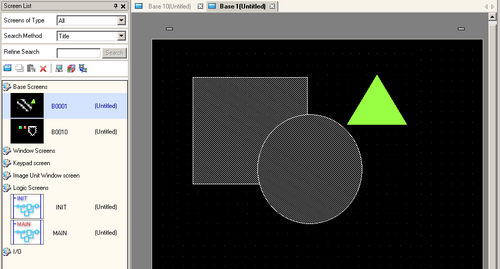
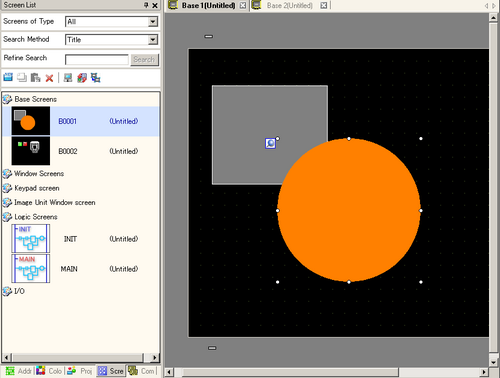
From the [Screen List] window, select the Base Screen you want to modify. The screen appears in the editing area.

![]()
From the [Screen List] window, select the logic screen you want to modify. The screen appears in the editing area.
Modify the screen.

![]()
For information on editing screens and parts, see the following.
8.1 Settings Menu
For information on changing the display unit, see the following.
5.1 Changing a Display Unit
For information on changing the device/PLC, see the following.
7.4 Changing a Device/PLC
Refer to the following when confirming/searching an address used in the project or when wanting to make block changes.
40.1 Confirming the Address List Used in a Project File
40.2 Converting Multiple Addresses
40.3 Searching/Replacing Parts Addresses, Labels, Comments, and Logic Instructions
Either select [Save (S)] from the [Project (F)] menu, or save the modified file by clicking
.
![]()
Error checks are automatically performed when projects are saved. If there are problems with the Project Files, the content will be displayed in the [Error Check] Window. By double-clicking the displayed rows, the screen with problems is displayed, so please modify the relevant areas.
To verify operation, in the status bar click [Simulation].
33.1 Settings Menu