
-
Please refer to the Settings Guide for details.
 33.6.1 GP-Pro EX Simulation Setting Guide
33.6.5 External PLC Simulator Settings Guide
Please refer to the Settings Guide for details.
33.6.1 GP-Pro EX Simulation Setting Guide
33.6.5 External PLC Simulator Settings Guide
Start the external PLC simulator.
For required software, see the following.
33.5.1 Required Software
Open the project file you want to simulate. From the [Project (F)] menu, select [Simulation (L)].
You can also use the keyboard shortcut Ctrl+T to start simulation.
You can also click  from the State bar to start simulation.
The [External PLC Simulator Connection] dialog box appears.
Select the [Connects with an external PLC simulator] check box.
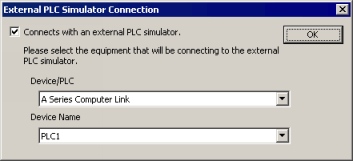
Select the [Device/PLC] or [Device Name] you want to simulate in the project. To specify a [Device/PLC] or a [Device Name], from the [Project] menu point to [System Settings] and click [Device/PLC]. In the [Device/PLC] dialog box, select the [Manufacturer] and [Series] from the list. Scroll down to [Device-Specific Settings] to specify the [Device Name] and [Settings].
Simulation can check operations of one device/PLC.
Click [OK].
The [Select Connection Type] dialog box appears.
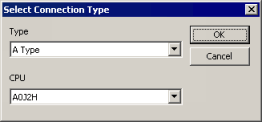
For the [Type], select the CPU type set up for the external PLC simulator.
For the [CPU], select the CPU set up for the external PLC simulator.
Click [OK] to display [GP-Pro EX Simulation] with the external PLC simulator operation status.
When you edit the project and run simulation again, close [GP-Pro EX Simulation]. Do the same when running simulation for a different project.
After editing or opening a project that you want to run simulation on, update the contents in [GP-Pro EX Simulation] using one of the following.
From the [Project (F)] menu, select [Simulation (L)]
Press [Ctrl]+[T]
Press [F12]
To exit simulation, in the [GP-Pro EX Simulation] dialog box, from the [Simulation (S)] menu click [Exit Simulation (X)]  .
.