
For details about the setting screen, refer to the setting guide.
 M.15.2.2 Main Unit - Operation Settings
Set up when touch is detected, either when you touch the screen or when you release the touch.
For details about the setting screen, refer to the setting guide.M.15.2.2 Main Unit - Operation Settings
Go to offline mode and touch [Main Unit] on the item changeover switch.
[Main Unit Settings] screen opens. Touch [Operation Settings].
[Operation Settings] window opens. In the [Touch Panel Detection] field, select either [ON] or [OFF].
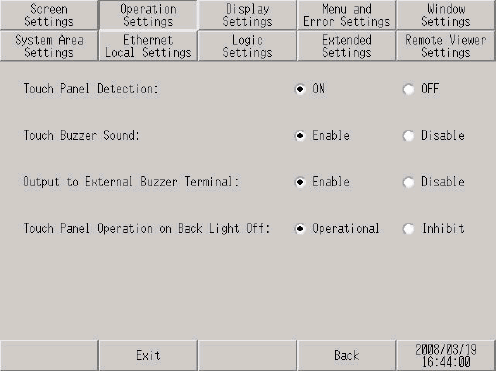
ON
Touch is detected when the screen is touched.
OFF
Touch is detected when your finger leaves the screen.
In momentary operation, touch is detected when the screen is touched regardless of the Touch Panel Detection setting. In repeat operation, the Touch Panel Detection setting becomes invalid.
[Exit] displays the [Exit] dialog box. Touch [Save changes and exit].
When using GP-4100 series, touch [Top] to return to the initial screen. Touch [Exit] and in the confirmation screen, touch [Save changes and exit].
[Save File] dialog box appears and then the display unit restarts. The setting is complete.