From the [Common Settings (R)] menu, select [Symbol Variable (V)], or click  . The [Edit Symbol Variables] window appears.
Double-click a cell in the [Name] column to enter a name. (For example, Switch1)

Symbol variable names have some restrictions.
The maximum number of characters is 32.
You cannot use the following symbols.
+ - * / = % & | \ : . , # ? @ [ ] < > "You cannot use TAB or DEL.
You cannot use a name starting with a single-byte number.
You cannot use a single-byte space.
You cannot leave the name blank.
Double-byte characters and single-byte characters are different.
Upper case characters and lower case characters are different.
Click a cell in the [Type] column to select a type. (For example, bit address)
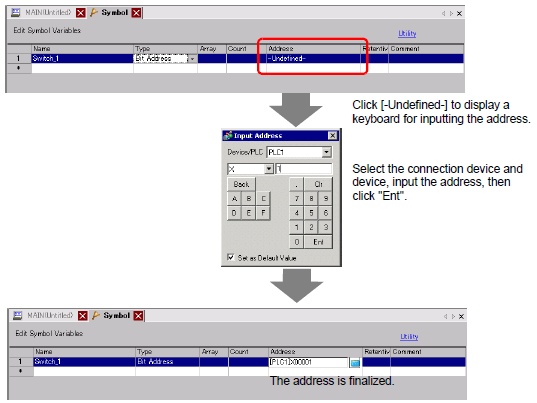
If you selected [Bit Address] or [Word Address], you can specify the address. Proceed to step 4.
If you selected [Bit Variable], [Integer Variable], [Float Variable], or [Real Variable], you can specify the array. To specify the array, go to step 5. If not setting the array, proceed to step 6.
If you selected [Timer Variable], [Counter Variable], [Time Variable], or [Date Variable], proceed to step 6.
If you selected [PID Variable], the [Retentive] check box must always be selected. Proceed to step 7.

For details on types, refer to the following.
 29.3.2.2 Variable Type
Specify the address on the [Address] column, then go to step 8.
To specify the array, click a cell in the [Array] column, then select the check box to display the cell in the [Count] column. In the [Count] column, enter the array size (for example, 5). Proceed to step 6.
For details on the arrays, refer to the following.
29.3.2.3 Arrays and Array Sizes
For the retentive setting, click a cell in the [Retentive] column and select the check box.
For the volatile setting, clear the check box in the [Retentive] cell.
For details on the retentive/volatile settings, refer to the following.
29.3.2.4 Retentive Variable Settings
To input a comment, click the cell in the [Comment] column and enter the comment.
For details on comments, refer to the following.
29.7.3 Symbol Variable Comments
 or press