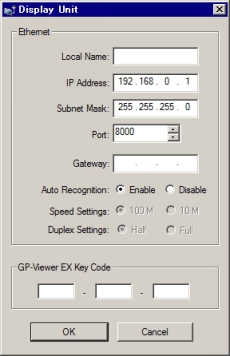
Adjust the settings for the Ethernet connection. These settings are used for communicating with devices and PLCs, sending data during GP setup or project file transfer, or when using Pro-Server EX software.
![]()
For details about the setting screen, refer to the setting guide.
M.17.2.7 Main Unit - Ethernet settings
When using the GP-4201TM, GP-4301TM, GP-Rear Module Series, or LT-4000 Series, you can set up the IP address in the Transfer Tool.
When using the GP-4201TM, GP-4301TM, GP-Rear Module Series, or LT-4000 Series
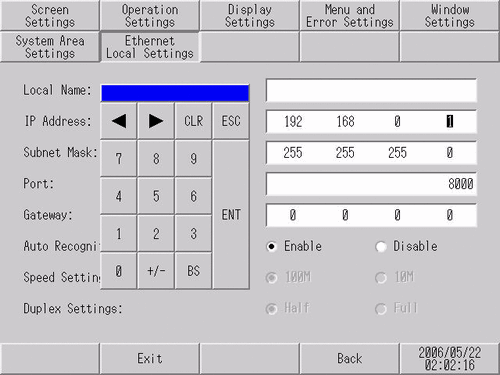
Go to Offline mode and touch [Main Unit] on the item changeover switch.
From the [Main Unit Settings] screen, touch [Ethernet Local Settings].
The [Ethernet Local Settings] screen opens. Touch the IP address input field to display the numeric touch keys and then enter an IP address. (For example, 192.168.0.1)
![]()
For details about the IP address setting, ask your network administrator.

Using the same steps, specify the [Subnet Mask], [Port], and [Gateway].
![]()
The [Port] number specified here is used for set up via Ethernet, transfer of project files, and communication with Pro-Server EX. Do not change the initial value [8000].
[Exit] saves the changes and restarts the display unit.
When using the GP-4201TM, GP-4301TM, GP-Rear Module Series, or LT-4000 Series
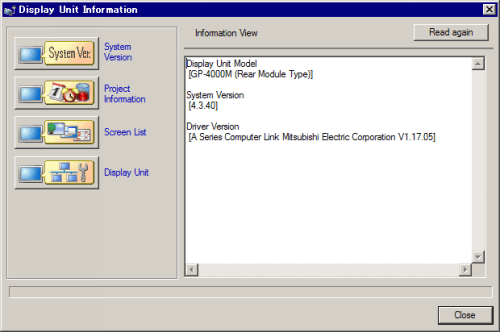
Check and set up the IP address with the following procedure.
Use the USB cable to connect the computer that has the Transfer Tool installed with the Display Unit.
Turn ON the display unit.
Start the Transfer Tool, click [Transfer Settings], then in the [Communication Port Settings] select [USB]. Click [OK] to close the dialog box.
Click [Display Unit Information] and in the dialog box that pops up click [Display Unit].
The display unit's [Ethernet Information] displays. Define the IP address and subnet mask. Click [OK] to transfer the Ethernet information. The display unit will restart.
Click [Close] to close the [Display Unit Information] dialog box and exit the Transfer Tool.