In the [Device-Specific Settings] (accessible from [Project] menu, [System Settings], [Device/PLC]), click the button  for the device/PLC for which you want to use a tag.
Select the [Use Tag Data] check box, and click either [New] or [Edit], as required.


-
Select [New] when you want to create new tag data, or update existing tag data (imported into GP-Pro EX). Select [Edit] when you want to add new tags to existing tag data.
When using TIA Portal (Siemens AG), from the [Edit] menu you can only delete and import. Tags deleted from the re-imported project file (.ap**) are also deleted from the existing tag data.
When updating existing tag data or adding new tags, to make sure you do not exceed the upper limit for imported tag data, first delete any unused tag data.
After deleting unused tags, click [Import].

-
Set [Usage] to [<Unused>] so you can check for unused tags. Select the tags displayed in the list and click [Delete] to remove the unused tags.
To the side of the [Select File] field, click [Browse] and select the project file (*.S7P) for the device/PLC.

-
If the project file contains multiple programs, a dialog box for program selection appears.
Select the program you want to import and click [OK]. -
Items using data types are filtered and imported.
A list of defined tags appears. Select the tags you want to import. Then click [OK] to import the tags.
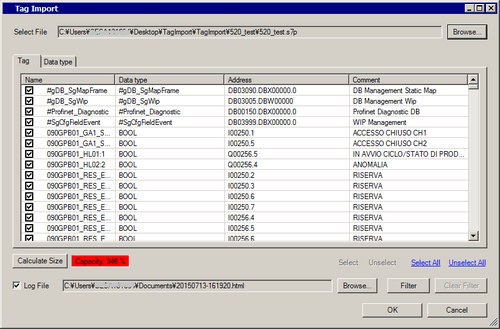
-
If you want to import, the only symbol in the tag name you can use is the underscore (_).
When the tag name includes any other symbols, rename the tag before importing.
Review the tags you have imported and click [OK].

When tag data used on the device/PLC changes, run an error check and edit addresses that become [Undetermined].

 to open the Input Address dialog box.

